
Draft:Create a New Page
How to Create a New Page
This tutorial covers the process in creating a page to formatting its contents, adding images and links, and publishing the finished page. It assumes that users can log in and have permission to create or edit pages.
Step 1: Log in to the Website
- Click Log in at the top right of the page.

- Use your UP Mail (username@up.edu.ph) to sign in.
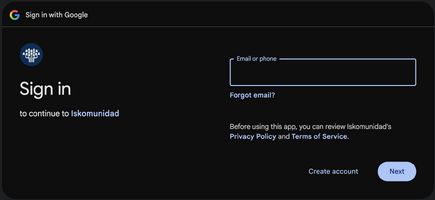
- Once logged in, you should see your username in the upper-right corner of the header bar.
*Please note that your username defaults to your UP Mail address.


Step 2: Create a New Page
- Enter the title of your proposed page in the search bar.

- Search for the title.
- If the page does not exist, look for an option such as Create the page.
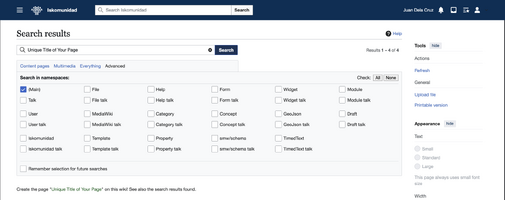
- Click on the title of your proposed page to open the editor.



Step 3: Choose your Editing mode
- Once you clicked on your page title, you will be directed to the page editor.
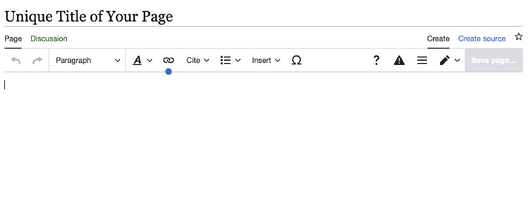
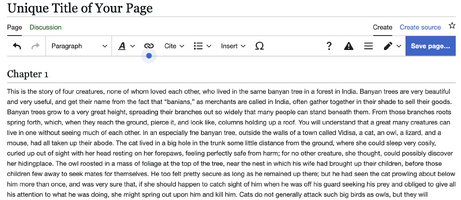
- By default, Iskomunidad uses the VisualEditor, which is recommended for beginners because it works similarly to a word processor (like Microsoft Word). You can simply type and format text directly, apply headings, format text, lists, and insert links, images, and tables through the toolbar options.
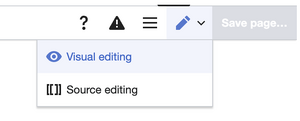
- Visual editor - Best for beginners who prefers a simple, user-friendly editing experience with visual formatting tools.
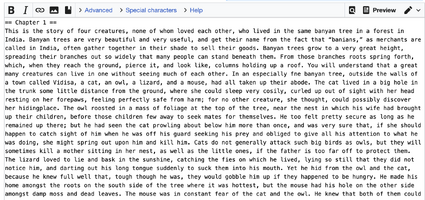
- Source editing - ideal for users who need greater control over page's markup. This mode allows you to enter wiki syntax manually, use templates and categories, and add supported HTML or extension-specific markup.
- Visual editor - Best for beginners who prefers a simple, user-friendly editing experience with visual formatting tools.


