
Uploading File: Difference between revisions
No edit summary |
No edit summary Tags: Reverted Visual edit |
||
| Line 51: | Line 51: | ||
You can also browse previously uploaded files in '''[[Special:ListFiles]]''' | You can also browse previously uploaded files in '''[[Special:ListFiles]]''' | ||
[[Category:How to]] | [[Category:How to]] | ||
Revision as of 01:07, 4 November 2026
You can upload different types of files to be used on your page.
File Type Formats
Here are the allowed file types that can be used in your Iskomunidad page.
| Category | File Extensions |
|---|---|
| Images | PNG, GIF, JPG, JPEG, SVG |
| Documents | DOC, DOCX, PDF |
| Presentations | PPT, PPS |
| Spreadsheets | XLS, XLSX |
| Audio | MP3, OGG, WAV |
| Video | MP4, FLV, WMV, MPG, MPEG, MOV, AVI, WEBM |
| Archives | ZIP |
| Interactive media | SWF |
How to Upload File
There are 2 ways to upload a file. The most common way is to use the Images and Media option in the editor (See the tutorial for Visual Editor and Source Editor). The alternative is to Upload the file using the Upload File available in Tools.
Upload File
How to Upload File using Tools.
- Click on Upload File. This will redirect you to the Upload File page.
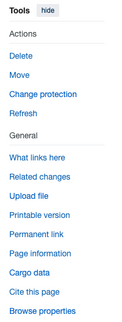
File Upload in Tools - Make sure your file size is within 50MB.
- On the Upload File page you can click on the "Choose File" button to open your local folder or simply click and drag your media to the Source file box, this will automatically upload your media.
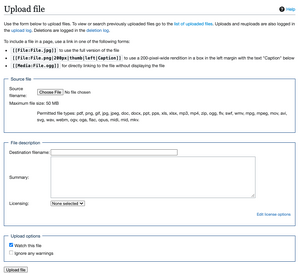
- You can change your media name on the File description box and also add a short summary of the media that can include a brief description of what your uploading.
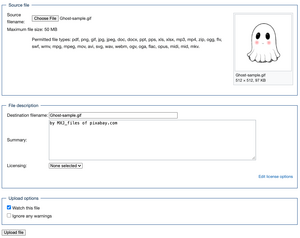
File Upload with details - Click on the Upload File.
- Once the media is uploaded properly you will see your uploaded file with its details and file history.
After Upload - You can now use your file upload on your page.


Browsing Uploaded Files
You can also browse previously uploaded files in Special:ListFiles